Reconciling Gusto Payroll in Xero
Introduction
This guide walks you through the process of reconciling Gusto payroll transactions in Xero. Proper reconciliation ensures your accounting records accurately reflect payroll expenses and maintains the integrity of your financial reporting.
In Xero, Gusto payroll transactions appear as two separate entries: one for the payroll itself and one for the payroll taxes. This guide shows how to properly split and reconcile these entries.
Procedure
-
Access Bank Reconciliation in Xero
Login to Xero and locate the OVI-GC Business Checking account on the dashboard. Look for the "Reconcile X items" button.

-
Locate Gusto Payroll Transaction
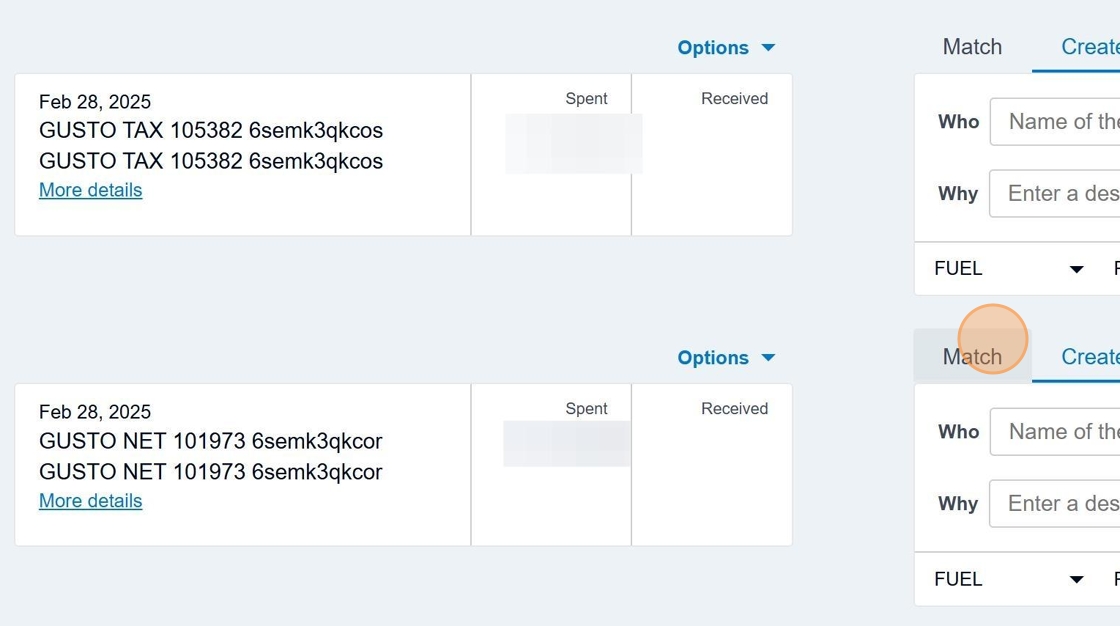
In the list of transactions to reconcile, find a Gusto payroll transaction. You can identify it by the description that typically includes "Gusto" or "Payroll." Click the "Match" button to the right of the transaction.
-
Search for Gusto Transactions
In the search field that appears, type "Gusto" to filter for all related Gusto transactions in your Xero account.

-
Execute the Search
Click the "Go" button to execute your search and display all Gusto-related transactions.

-
Match Transaction Dates
Compare the date on your bank transaction with the dates shown in the search results. You need to find the corresponding Gusto transaction with the matching date.
Date Matching TipIt's crucial to match the exact date. If the transaction date falls on a weekend or holiday, look for the nearest business day in the Xero records.

-
Select and Split the Transaction
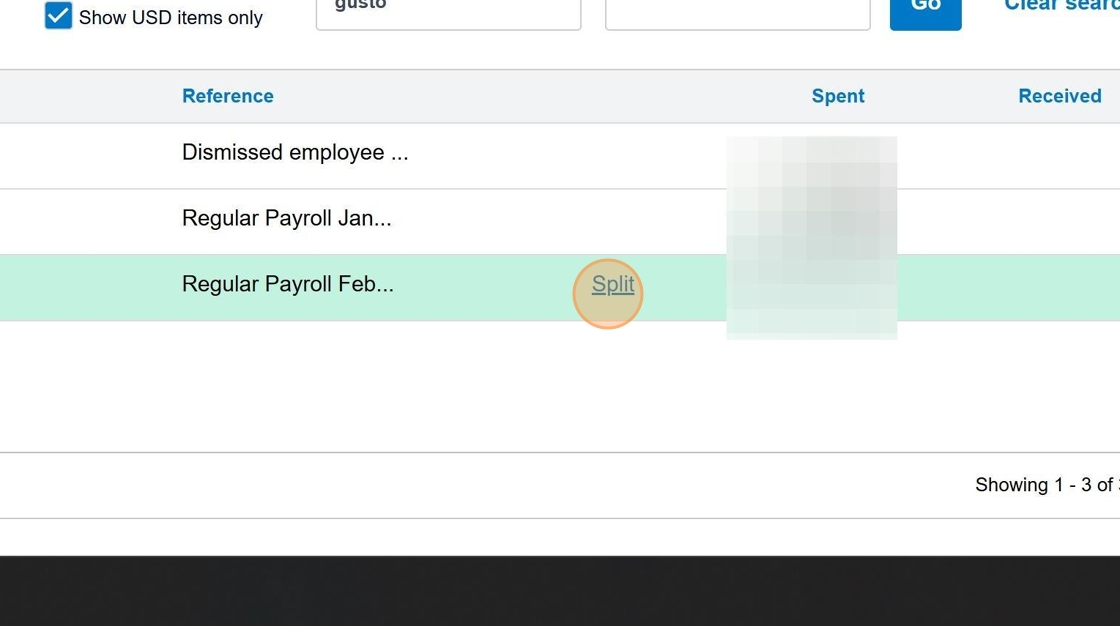
After finding the matching transaction, select it and click the "Split" button. This is necessary because Gusto payroll appears as two separate components in Xero: the main payroll transaction and the payroll tax transaction.
-
Confirm the Split
On the confirmation screen, click "Split" again to proceed with splitting the transaction between the payroll component and the tax component.
ImportantDo not adjust the split amounts manually. Xero will automatically calculate the correct split based on the original Gusto data.

-
Complete the Reconciliation
After splitting the transaction, click "Reconcile" to finalize the reconciliation process.

-
Refresh the Page
After reconciling, refresh the page to update the transaction list and to make sure the changes have been properly recorded in the system.
System UpdateRefreshing ensures that Xero's system has fully processed the reconciliation and updates the remaining transactions to be reconciled.
-
Verify the Transaction Match
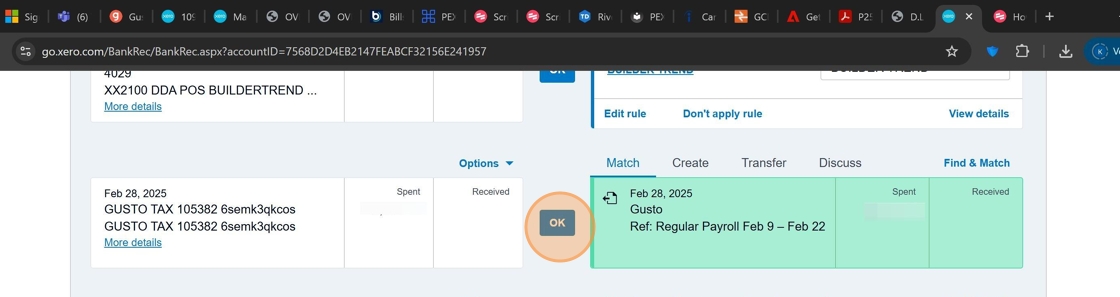
Once the page refreshes, Xero will automatically match the totals between the bank transaction and the split Gusto entries. Verify that the totals balance correctly, and click "OK" to confirm.
Connection to Operating Model
This procedure supports the financial management processes within the OVI-GC operating model by:
- Ensuring accurate financial reporting through proper reconciliation
- Maintaining consistency between payroll systems (Gusto) and accounting systems (Xero)
- Supporting the integrity of financial artifacts that flow through the organization
Checklist
- Login to Xero and access bank reconciliation
- Locate Gusto payroll transaction
- Search for matching Gusto transaction by date
- Select and split the transaction
- Confirm the split
- Reconcile the transaction
- Refresh the page
- Verify the transaction match and confirm
Once all steps are completed, the Gusto payroll transaction has been properly reconciled in Xero. Repeat this process for each Gusto payroll transaction that needs reconciliation.