PEX - Order Cards
Overview
This guide explains the process of ordering new PEX cards for team members through the PEX administration portal. This procedure is typically performed by authorized financial personnel or operations managers.
PEX cards are prepaid expense cards that allow controlled spending for team members while maintaining visibility and control over purchases.
Prerequisites
- Active PEX administrator account with ordering privileges
- Team member information (full name, date of birth, contact information)
- Knowledge of which manager will receive and distribute the new card
Procedure
Accessing Card Orders
-
Login to PEX and navigate to Cards section
Access the PEX administration portal and click on the "Cards" option in the main navigation menu.

-
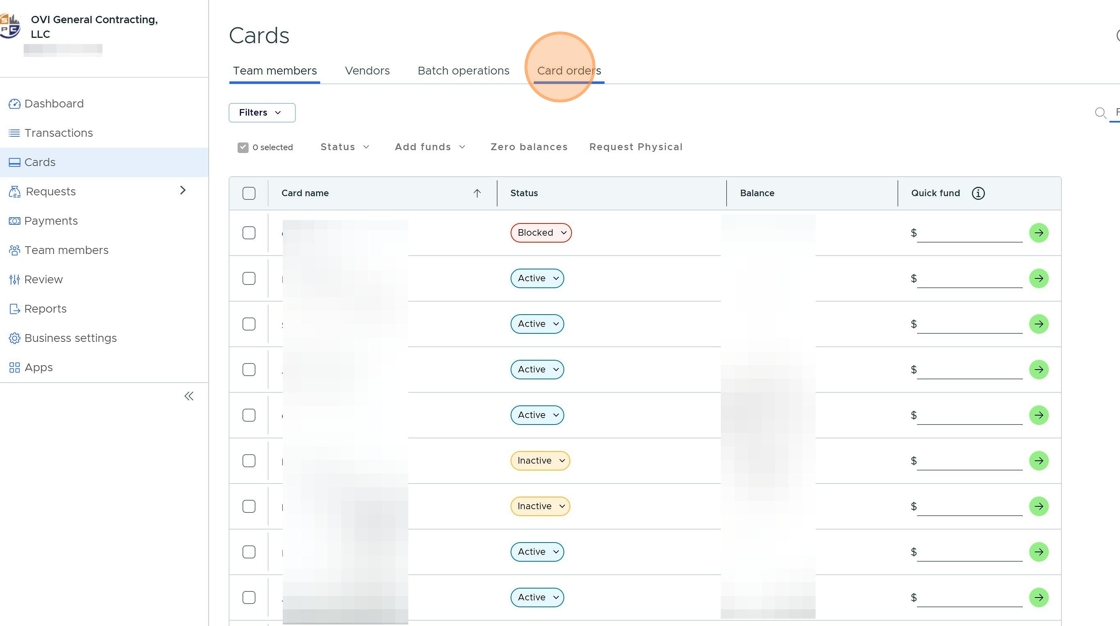
Navigate to Card Orders
From the Cards section, click on the "Card orders" option to access the card ordering functionality.
-
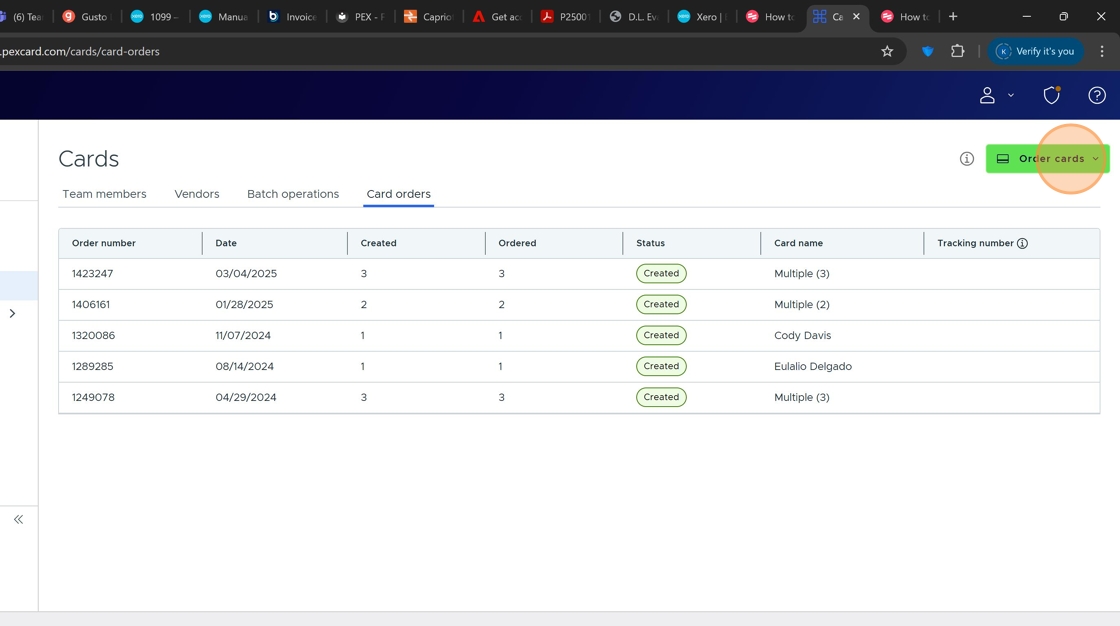
Initiate New Card Order
Click the "Order cards" button to start the process of ordering a new card.
Entering Card Holder Information
-
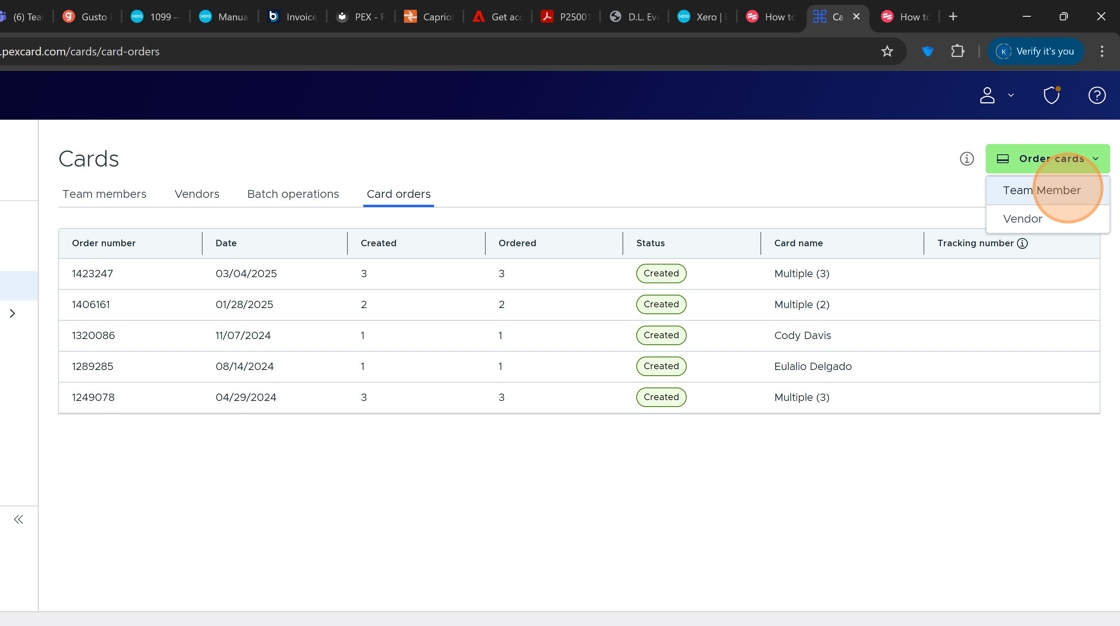
Select Card Type
Click "Team Member" to order a standard team member card.
-
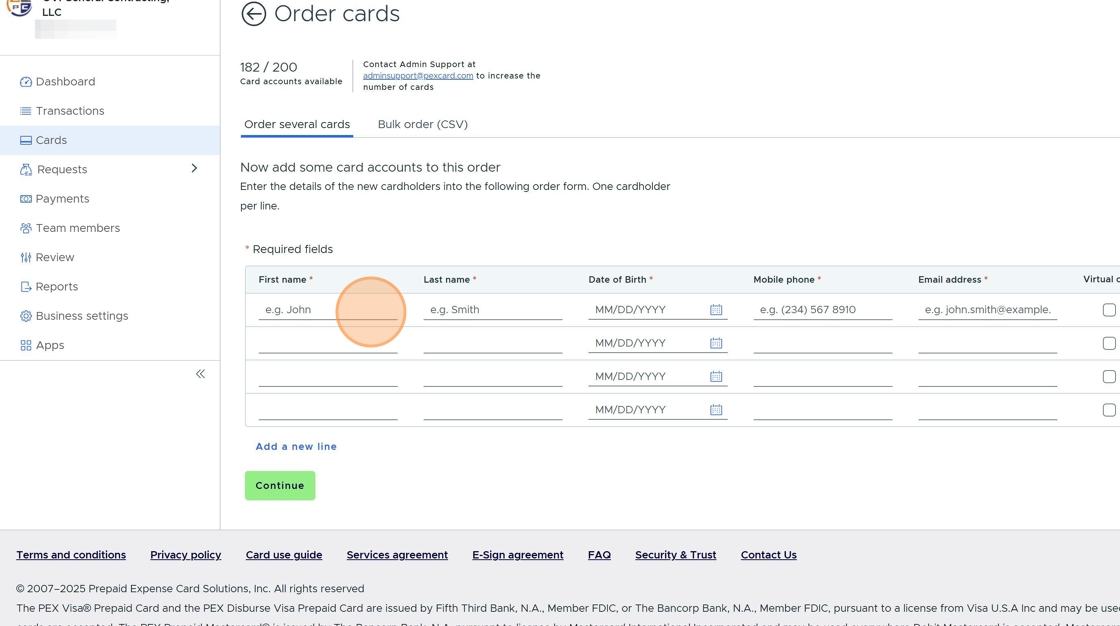
Enter Card Holder Details
Fill in all required information for the card holder:
- First Name
- Last Name
- Date of Birth
- Work Phone Number
- Work Email Address
ImportantEnsure all personal information is entered accurately. Incorrect information may cause delays in card issuance or activation problems.
-
Proceed to Next Step
After entering all required information, click the "Continue" button to proceed to the shipping details.

Setting Up Shipping Information
-
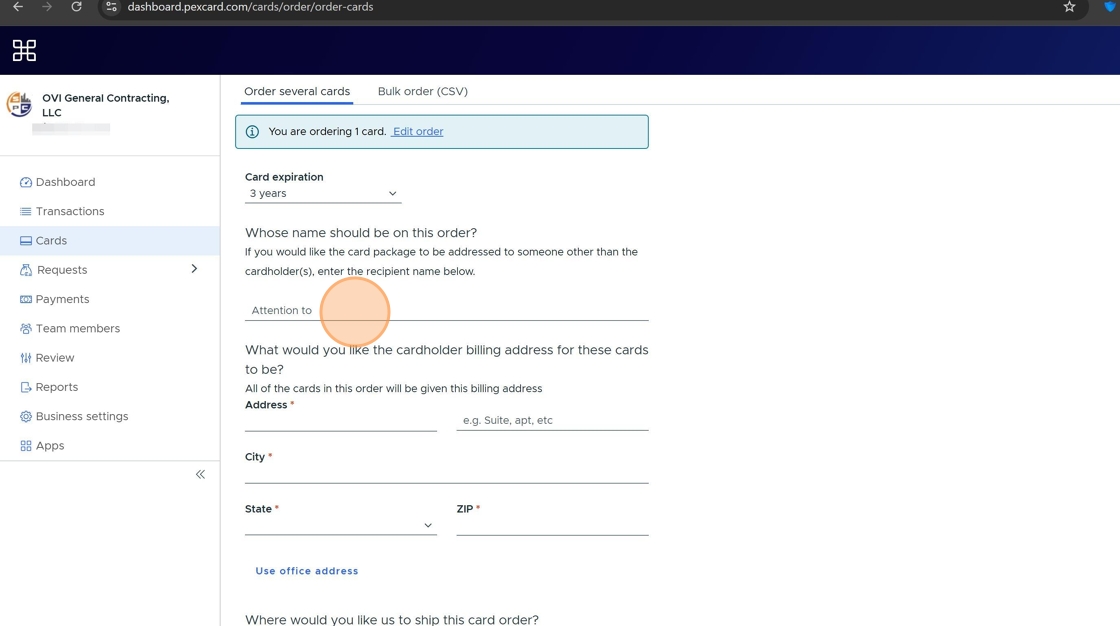
Specify Card Recipient
Click the "Attention to" field and enter the name of the manager who will receive the card.
Pro TipThis should be a manager or supervisor who will be responsible for distributing the card to the team member after it arrives.
-
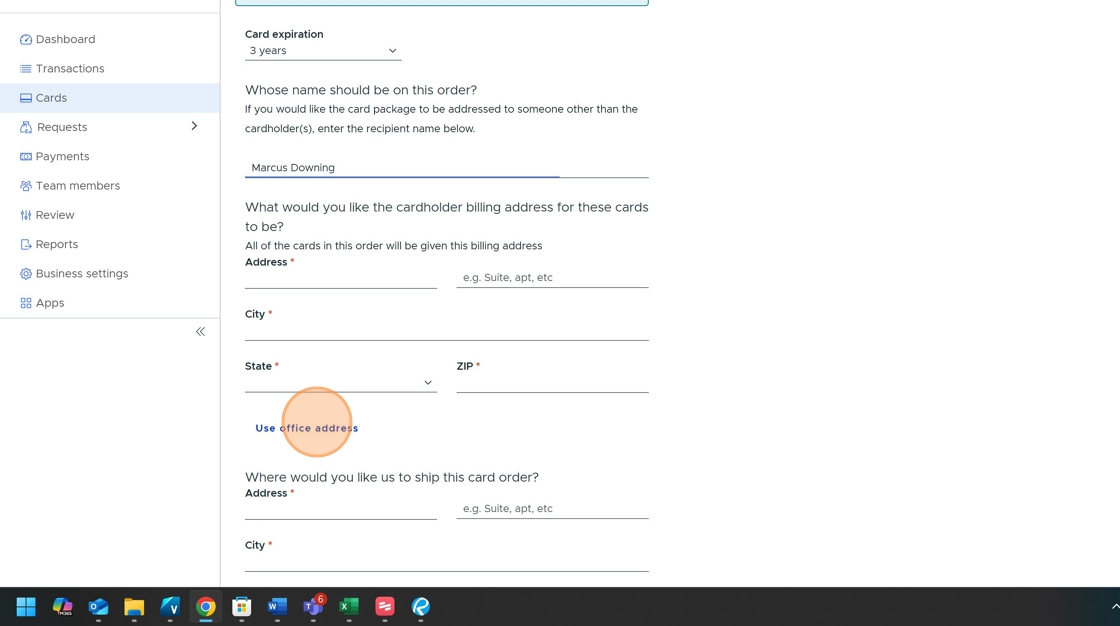
Set Shipping Address
Click "Use office address" for both the billing and shipping address fields to use the company's default address.
-
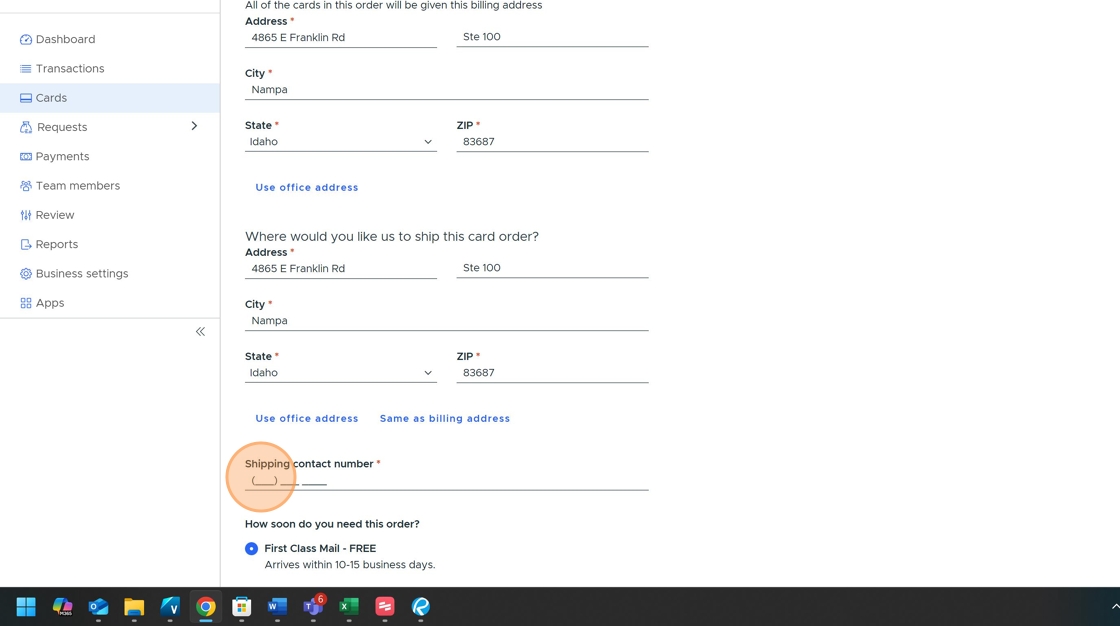
Enter Contact Phone Number
Click the "Shipping contact number" field and enter your phone number as the contact for any shipping-related queries.
Completing the Order
-
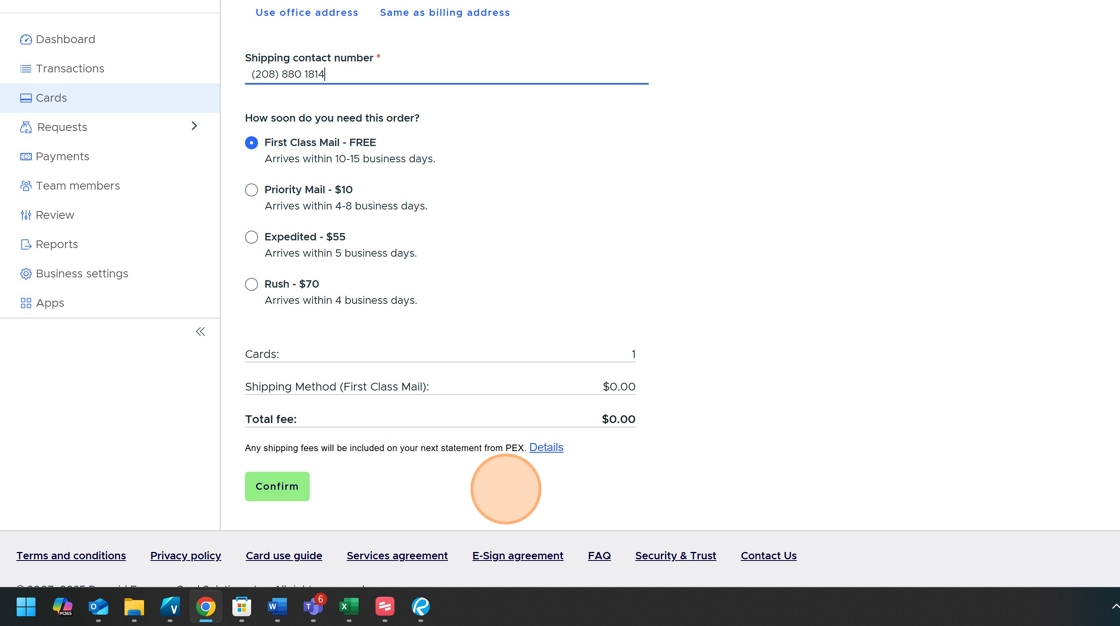
Confirm and Submit Order
Review all information for accuracy, then click the "Confirm" button to place the order.
CompletionA confirmation email will be sent to your registered email address once the order is successfully placed. Typically, cards arrive within 7-10 business days.
Follow-Up Steps
After ordering a card, you should:
- Inform the receiving manager to expect the card
- Set up spending limits and controls for the new card through the PEX administration portal
- Prepare training materials for the card recipient on proper card usage policies
Related Resources
Checklist
- Gather all necessary team member information
- Login to PEX administration portal
- Navigate to Card Orders
- Complete cardholder information form
- Specify shipping details and recipient manager
- Submit and confirm order
- Receive confirmation email
- Notify receiving manager
- Set up spending controls for new card