Downloading OFX Files from DL Evans Bank
Introduction
This guide explains how to download transaction data in OFX (Open Financial Exchange) format from DL Evans Bank. OFX files are commonly used to import financial data into accounting software like QuickBooks, Xero, or other financial management tools.
Exporting transaction data in OFX format allows for efficient reconciliation and bookkeeping by importing bank data directly into accounting systems.
Procedure
Follow these steps to download an OFX file from DL Evans Bank:
-
Access DL Evans Online Banking
Login to your DL Evans bank account and navigate to the Accounts section from the main dashboard.
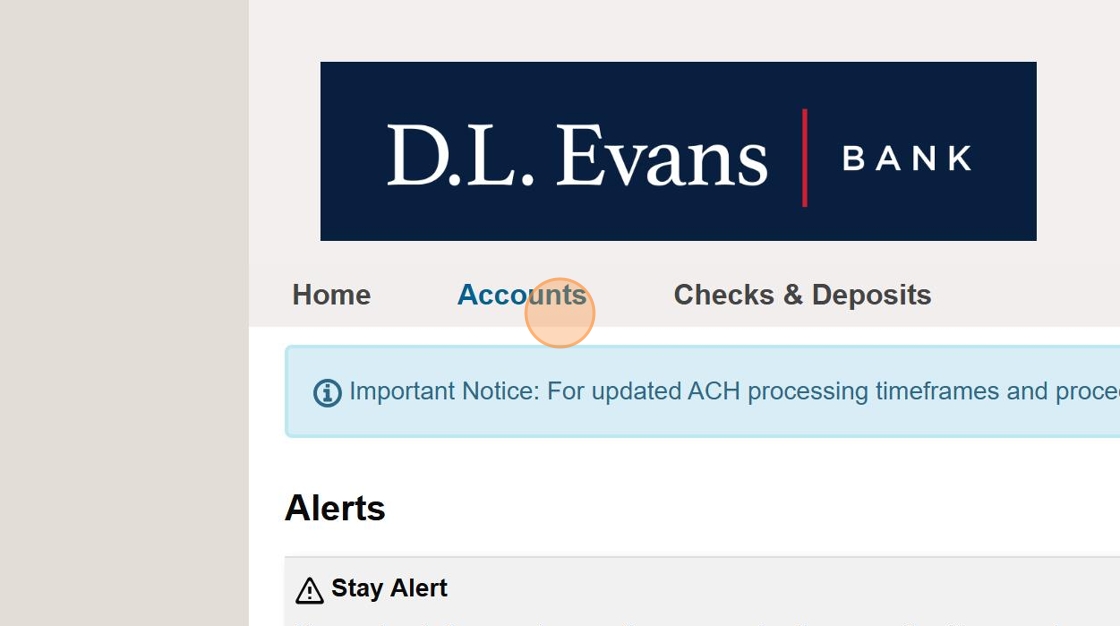 Login Credentials
If you don't have login credentials, contact the finance department or administrator who manages banking access.
-
Select the OVI GC Checking Account
From the accounts list, click on the "OVI GC CHECKING" account to access its details.
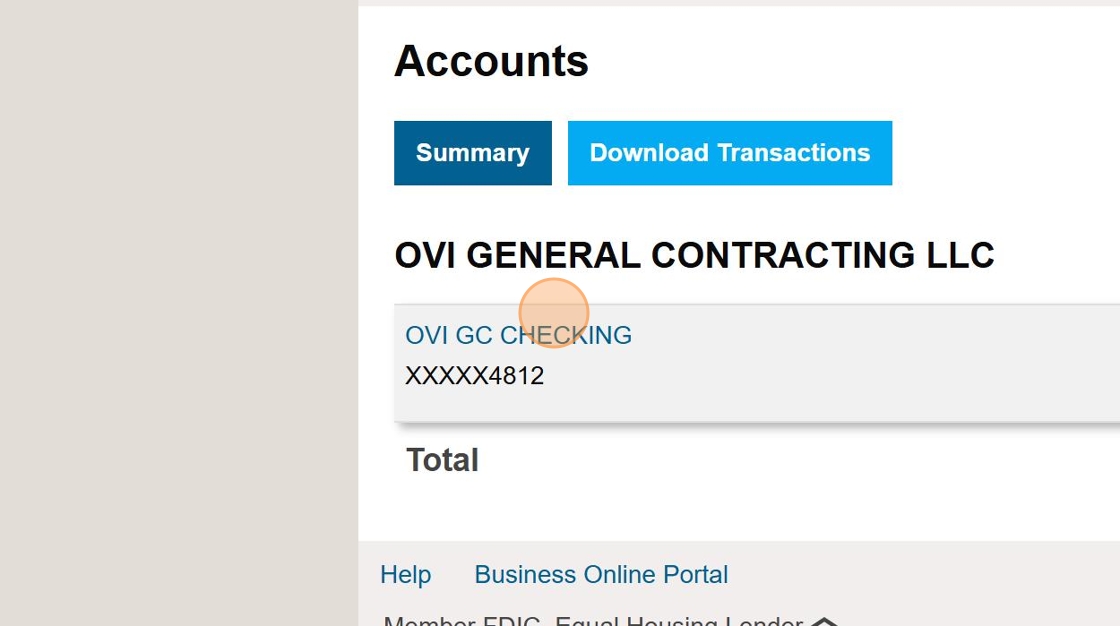 Account Selection
Make sure you're selecting the correct account. If you need to export data for multiple accounts, you'll need to repeat this process for each one.
-
Access the Download Function
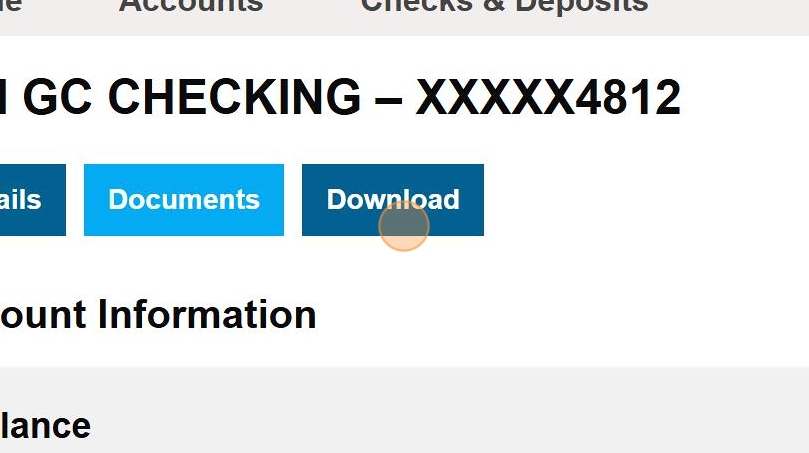
Once in the account details page, click the "Download" button to begin the export process.
-
Set the Date Range for Transactions
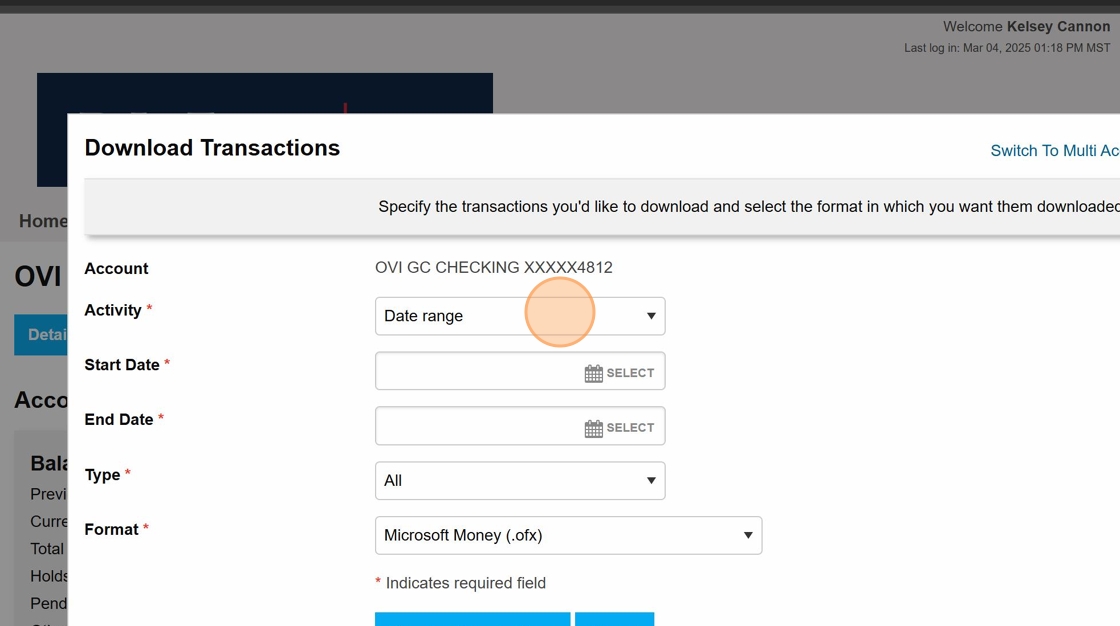
From the download page, click "Activity" and select "Date range" to specify the time period for which you want to export transactions.
-
Select Start and End Date
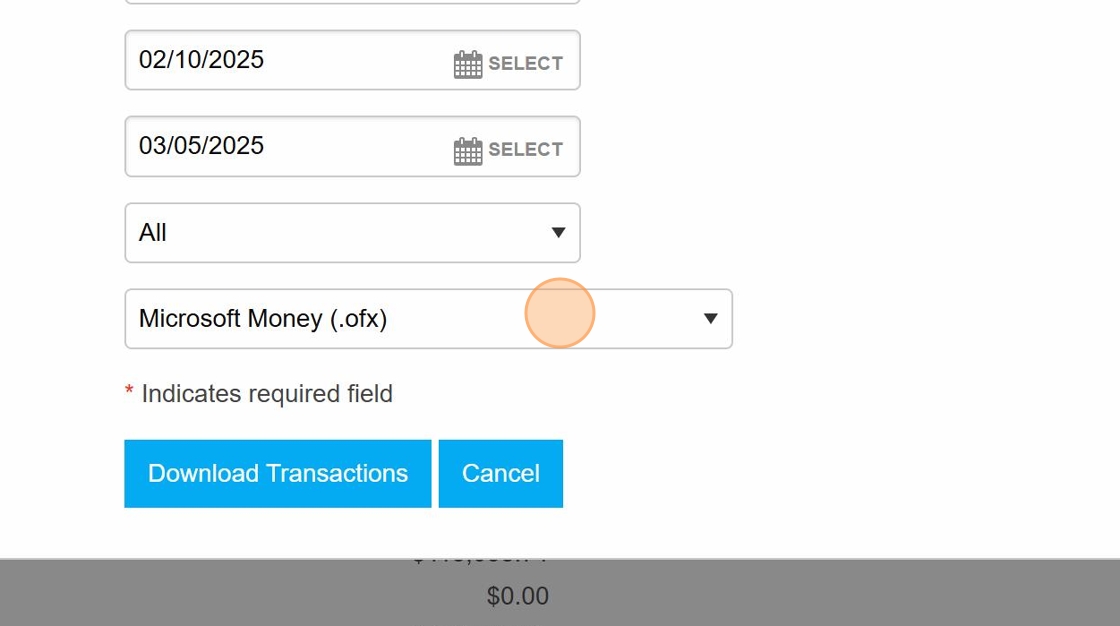
Choose the appropriate start and end dates for the transaction period you need to export.
 Date Range Limitations
DL Evans may limit the date range for a single export. If you need data for a longer period, you may need to create multiple exports with smaller date ranges.
-
Select the OFX File Format
Click the "Format" dropdown menu and select "Microsoft Money .ofx" as the export format.
 File Format Information
The .ofx format is an XML-based standard for exchanging financial information. It's widely supported by accounting software for importing bank transactions.
-
Download the Transactions
Finally, click the "Download Transactions" button to generate and download the OFX file to your computer.

Next Steps
After downloading the OFX file, you can:
Checklist
- Log in to DL Evans online banking
- Navigate to the OVI GC CHECKING account
- Click the Download button
- Select Activity and Date Range
- Choose appropriate start and end dates
- Select Microsoft Money .ofx format
- Download the transactions file
- Import file into accounting software
Consider renaming the downloaded file with a consistent naming convention, such as "OVIGC_Bank_YYYYMMDD-YYYYMMDD.ofx" to indicate the date range of the export.