HR - Sync New Hire Gusto
This procedure outlines the steps to sync a new employee's information between Buildertrend and Gusto. This connection ensures payroll information is properly synchronized between systems and is a critical step in the employee onboarding process.
Procedure
-
Access User Management in Buildertrend
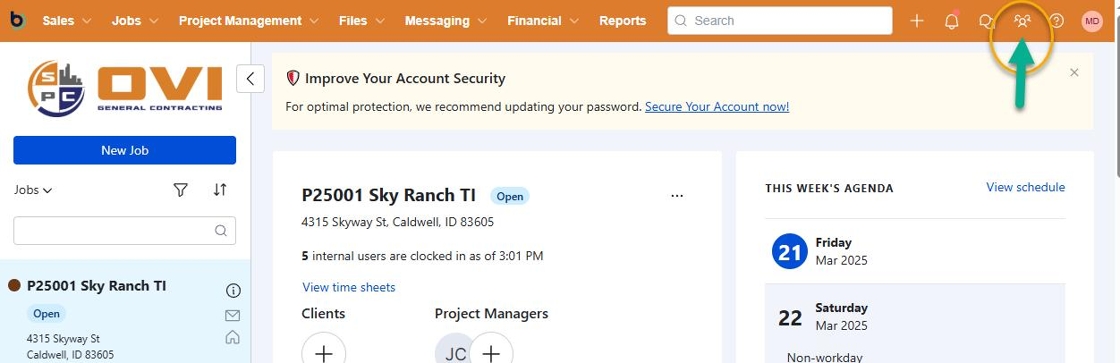
Log into Buildertrend, and select Manage Users from the top right menu to access user administration.
-
Select the Employee Profile
Locate and click on the employee's name to open their profile details.
 note
noteEnsure you have the appropriate administrator privileges to access employee information.
-
Navigate to Payroll Section
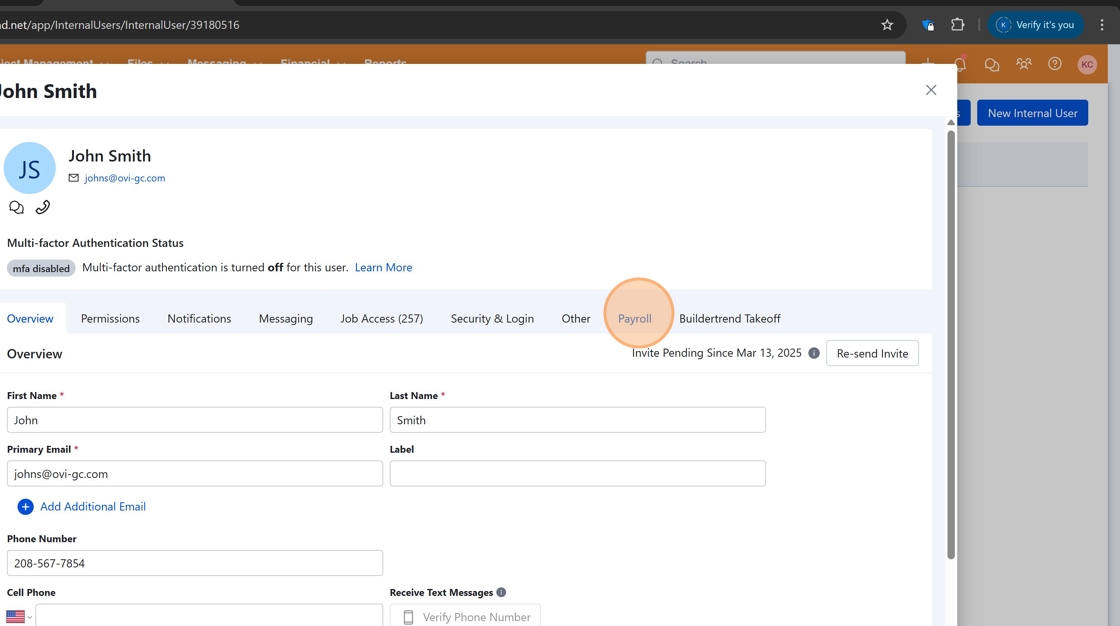
Click the "payroll" tab within the employee profile to access payroll settings.
-
Initiate Gusto Sync
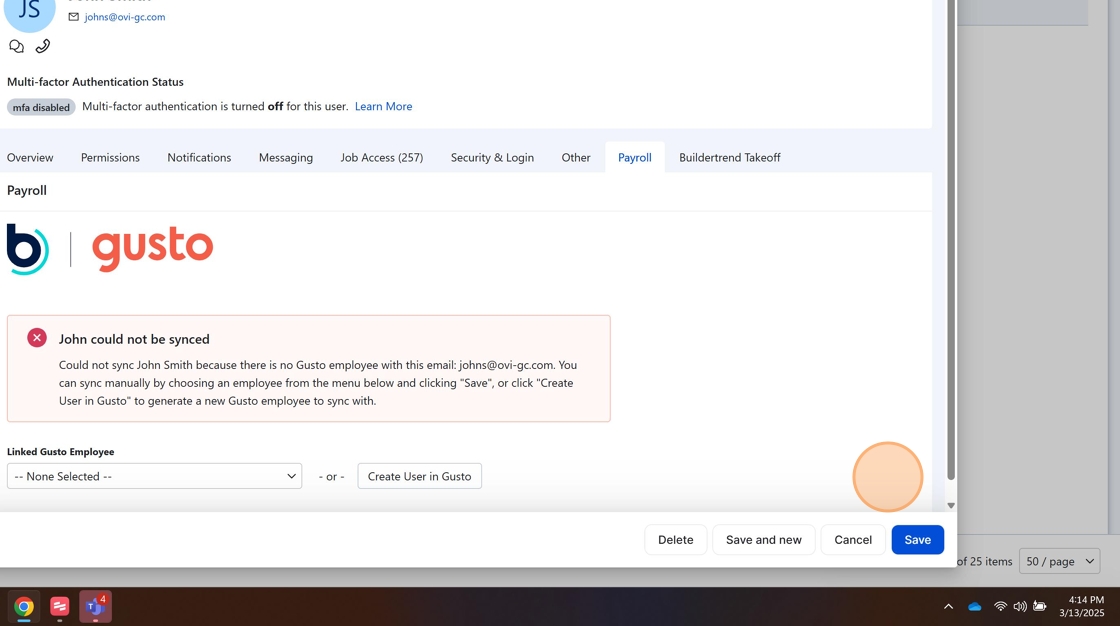
Click the "Sync with Gusto User" button to establish the connection between Buildertrend and Gusto for this employee.
 tip
tipEnsure the employee has already been set up in Gusto before attempting synchronization.
-
Save the Configuration
After the sync is established, click "Save" to finalize the connection between the systems.
Checklist
- Log into Buildertrend
- Access Manage Users
- Select appropriate employee
- Navigate to payroll section
- Initiate Gusto sync
- Save configuration
When complete, the employee's information will be successfully synchronized between Buildertrend and Gusto. The employee is now properly set up for payroll processing.