GCP - New Pay App (Legacy)
Overview
This guide walks through the process of creating and submitting a new payment application on the GCPay platform. Properly submitting payment applications ensures timely processing and accurate financial reporting for project billing.
Procedure
Accessing GCPay
-
Navigate to the GCPay Website
Access the GCPay system through the official URL.
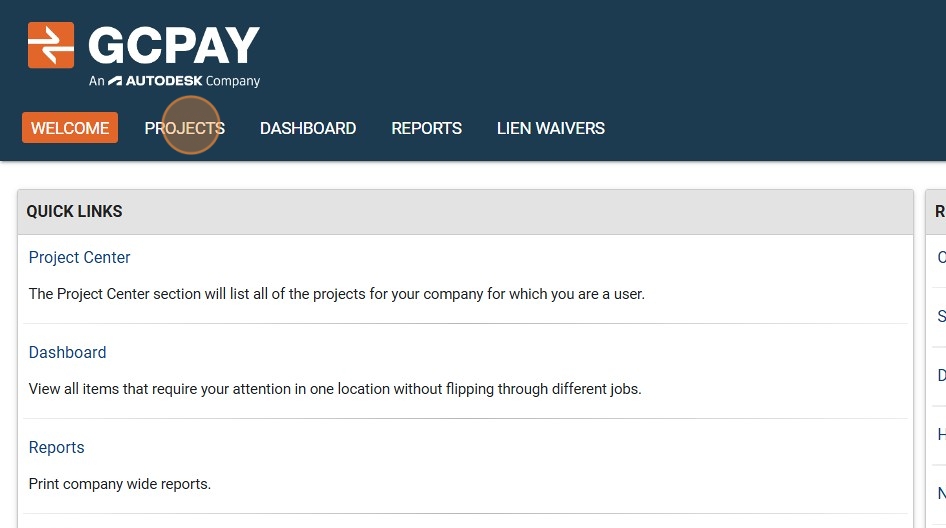 Direct URL
You can access GCPay directly at: https://gcpay.com/main/index.do
Selecting the Project
-
Access the Projects Module
Click the "PROJECTS" button in the navigation menu to view available projects.
-
Select the Target Project
Click on the project number (e.g., "24007") for the specific project you need to bill for.
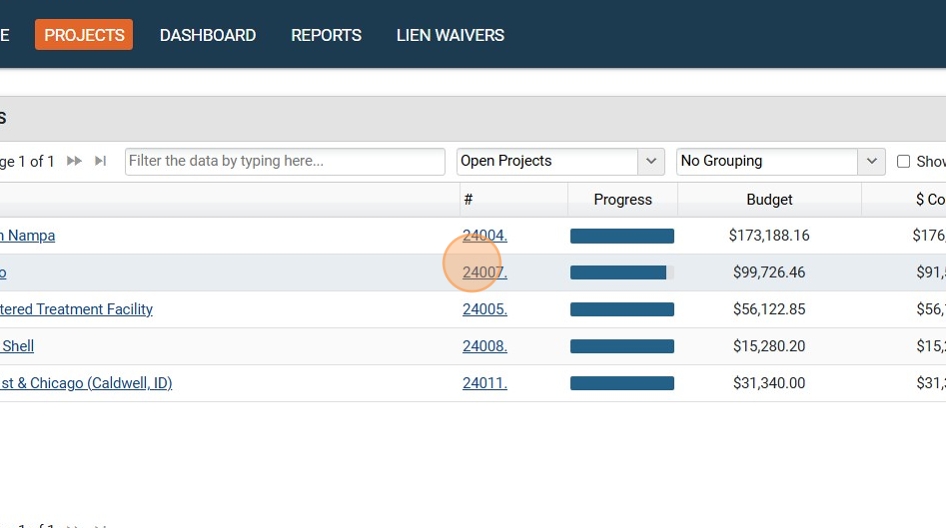 Project Identification
Make sure you select the correct project number. This will determine which project your payment application will be associated with.
Creating the Pay Application
-
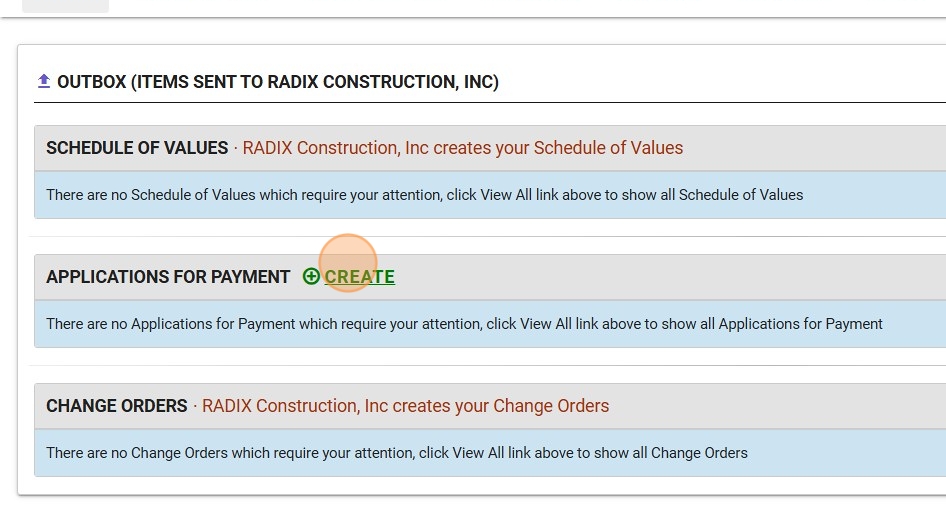
Initiate a New Payment Application
Click the "CREATE" button to start a new application for payment.
-
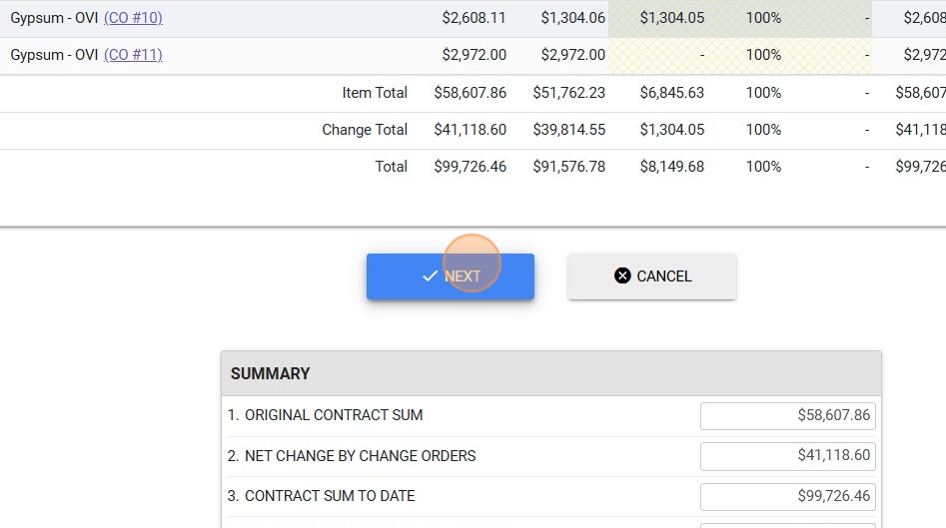
Enter Billing Information
Review the schedule of values and previous billings, then enter the current billing amount or percentage for each relevant line item.
 Billing Options
You can enter either a specific dollar amount or a percentage of the total contract value for each line item, depending on your billing requirements.
-
Proceed to Next Step
After completing the billing entries, click the "NEXT" button to continue.
Reporting Subcontractor Information
-
Access Subcontractor Reporting
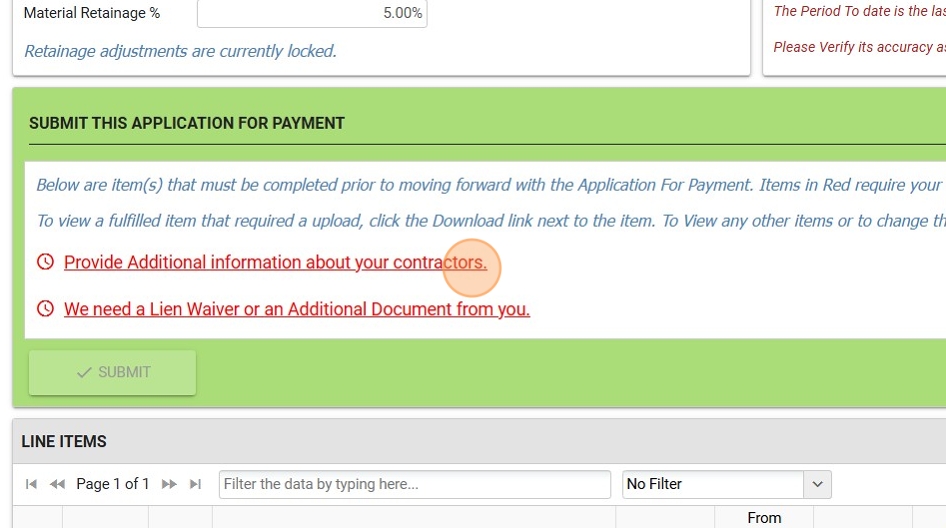
Click "Provide Additional information about your contractors" to report billing status for any sub-tier vendors or contractors.
 Compliance Requirement
Accurate subcontractor reporting is often required for compliance with contract terms and prompt payment regulations.
-
Indicate Subcontractor Status
If there are no subcontractors to report for this period, click "NO".

Providing Required Documentation
-
Access Lien Waiver Section
Click "We need a Lien Waiver or an Additional Document from you" to access the document submission area.
 Required Documentation
A conditional lien waiver is required for every pay application submission.
-
View the Required Document
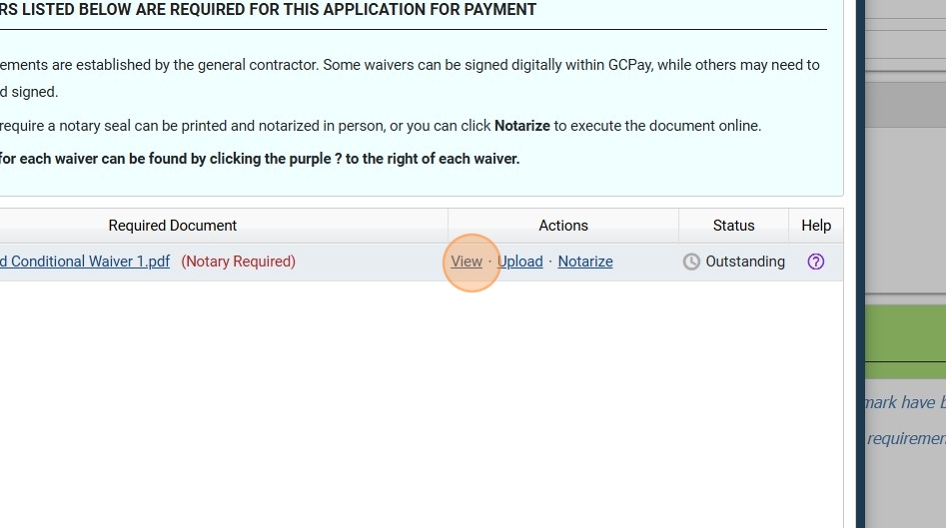
Click "View" to see the document that needs to be completed.
 Required Documentation
A conditional lien waiver is required for every pay application submission.
-
Download the Lien Waiver
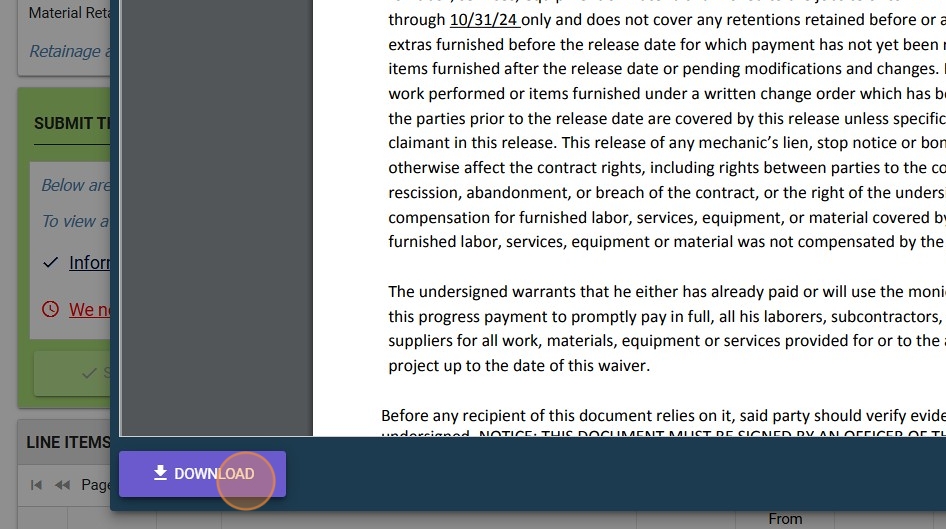
Click "DOWNLOAD" to save the conditional waiver to your device so you can complete, sign, and notarize it.
 Document Preparation
After downloading, complete all required fields in the document, obtain appropriate signatures and notarization before uploading.
-
Upload the Completed Document
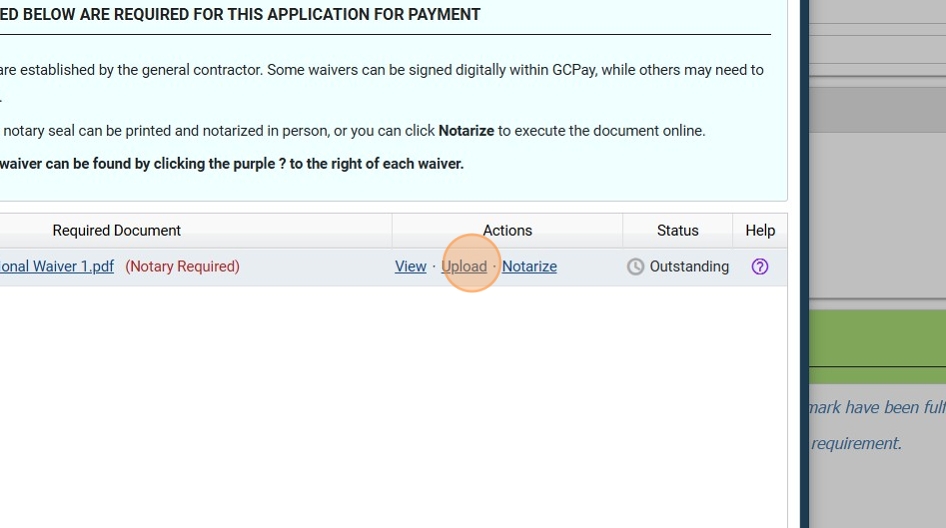
Once the waiver is signed and notarized, click "Upload" to attach it to your pay application.
-
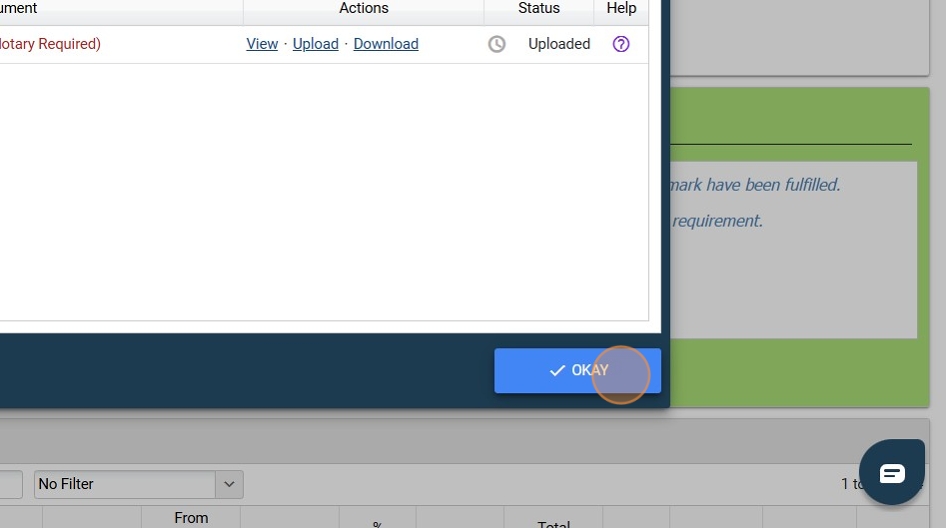
Complete Document Upload Process
Click on the indicated area to finalize the document upload.
Submitting the Pay Application
-
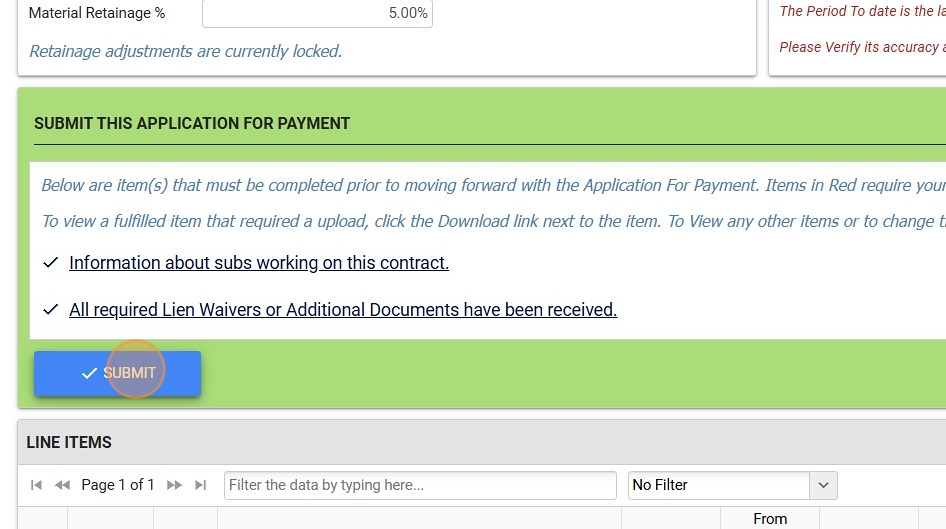
Submit Initial Application
Click "SUBMIT" to process your payment application.
-
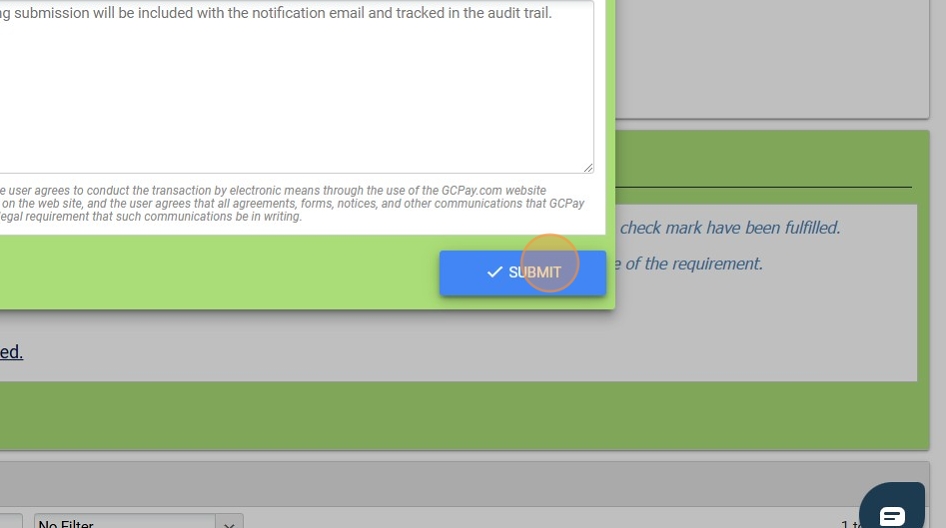
Confirm Submission
Click "SUBMIT" on the confirmation dialog to finalize your application.
-
Acknowledge Submission Terms
Click "YES" to acknowledge that all information provided is accurate.
 Legal Declaration
By clicking "YES", you are legally declaring that all information in your submission is true and accurate.
-
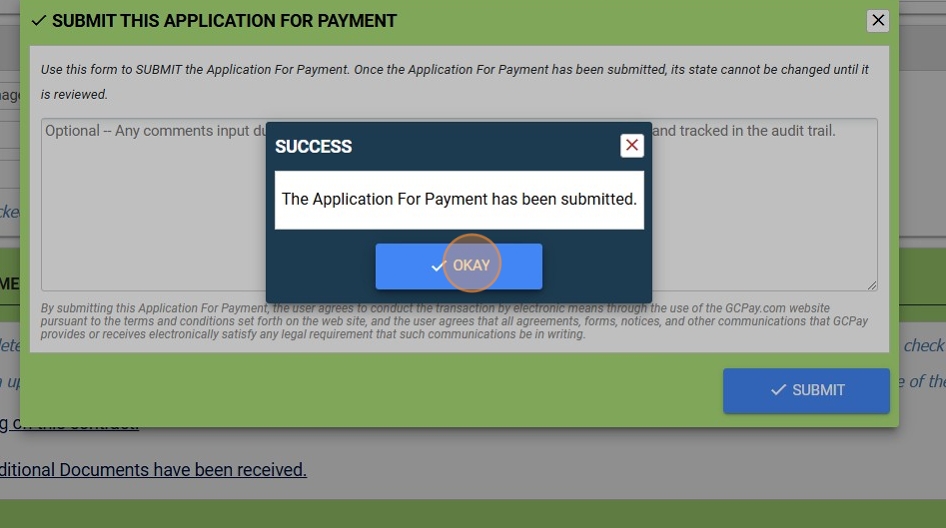
Complete the Process
Click "OKAY" to finish the submission process and return to the main interface.
 Completion
Once all steps are completed and confirmed, your payment application has been successfully submitted for processing. The system will notify the appropriate parties for review and approval.
Payment Application Workflow
Process Checklist
- Log in to GCPay
- Navigate to Projects
- Select the correct project number
- Click Create to start a new pay application
- Enter billing amounts for relevant line items
- Report subcontractor information (if applicable)
- Download required lien waiver
- Complete, sign, and notarize lien waiver
- Upload completed document
- Submit application
- Confirm submission details
- Acknowledge terms and accuracy of information
Completion
Once all steps are completed and confirmed, your payment application has been successfully submitted for processing. The system will notify the appropriate parties for review and approval.