Project Setup
Overview
This guide outlines the process of adding new projects to our integrated project management and financial systems: Buildertrend, PEX, and Xero. Proper setup ensures seamless data flow and accurate financial tracking across all platforms.
- Project names and numbers originate from Buildertrend
- Xero is used for accounting
- PEX is used for credit card services
- Consistent naming across platforms is crucial
Prerequisites
Before starting, ensure you have:
- Access to Buildertrend with project creation permissions
- Access to Xero with tracking category management permissions
- Access to PEX with tag management permissions
- The new project details from Buildertrend
Step-by-Step Guide
Step 1: Set Up Project in Buildertrend
- Log in to Buildertrend
- Navigate to the Projects section
- Click on "Add New Project"
- Fill in the required project details:
- Project Name
- Project Number
- Client Information
- Project Start Date
- Save the new project
The project name and number established in Buildertrend will be used in subsequent steps.
Step 2: Add Project to Xero
- Log in to Xero
- Navigate to the Accounting tab
- Select Tracking Categories
- Go to PROJECTS
- Click on Add Another Option
- Enter the project name exactly as it appears in Buildertrend
- Save your changes
- Adding Project to Xero
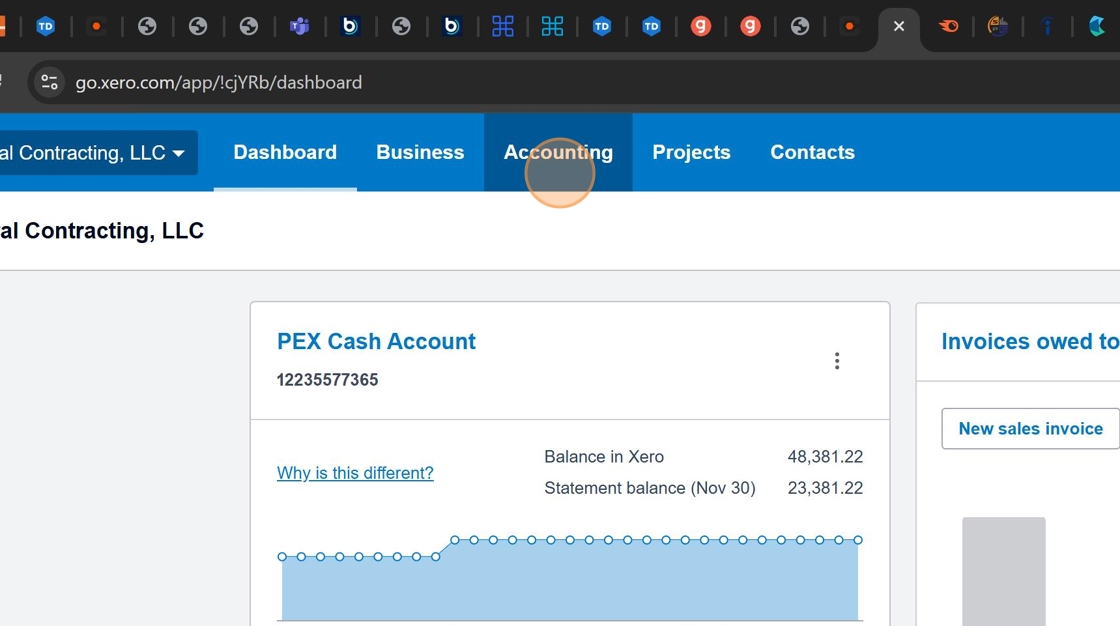
The tracking category name in Xero must match the tag created in PEX exactly. Once assigned to a transaction, it cannot be changed.
Step 3: Add Project to PEX
- Log in to PEX
- Go to Business Settings
- Select Tag Manager
- Click the pencil icon next to PROJECTS
- Choose Add a New Option
- Enter the project name exactly as it appears in Xero and Buildertrend
- Update and save your changes
- Adding Project to PEX

The "Option Value" in PEX must exactly match the "Category Option" in Xero. Once saved, it cannot be updated or changed, only deactivated. A typo will prevent transactions from synchronizing to Xero.
Why This Procedure is Important
- Consistency and Accuracy
- Efficient Cost Tracking
Ensuring project names (tags) in PEX match exactly with tracking categories in Xero guarantees accurate tracking and reporting of all project-related expenses and transactions.
This procedure enables efficient management and tracking of project-related costs, leading to better financial oversight and decision-making.
Troubleshooting
If you encounter issues:
-
Synchronization Problems:
- Double-check that tag names in PEX and Xero are identical and free of typos.
-
Incorrect Tag in PEX:
- Deactivate the incorrect tag.
- Create a new tag with the correct information.
Once saved, the Option Value in PEX cannot be changed. Always verify before saving.