Subcontractor Onboarding in Buildertrend
This guide provides a detailed process for adding new subcontractors into the Buildertrend system, which is essential for project management, communication, and vendor relationship management.
Prerequisites
Before beginning the subcontractor onboarding process, ensure you have:
- Active Buildertrend administrator access
- Complete subcontractor contact information
- Vendor classification details (if applicable)
Adding a New Subcontractor
Follow these steps to add a new subcontractor to the Buildertrend system:
-
Login to Buildertrend
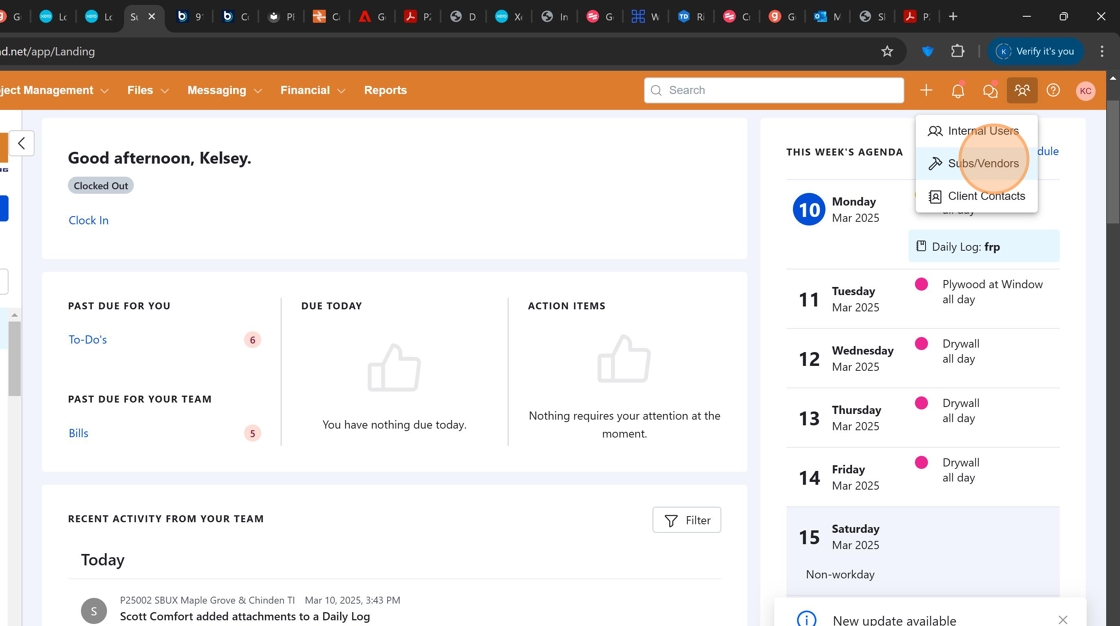
Access the Buildertrend platform with your credentials and locate the user menu in the top right corner.

You can also use the sidebar navigation menu to access the Subs/Vendors section directly if visible.
-
Access Subs/Vendors Section
Click the "Subs/Vendors" option from the dropdown menu to access the vendor management area.
-
Create New Subcontractor Entry
Click the "New Sub/Vendor" button to initiate the subcontractor creation process.

-
Enter Subcontractor Information
Complete all required fields with the subcontractor's details including company name, contact person, address, and phone number.
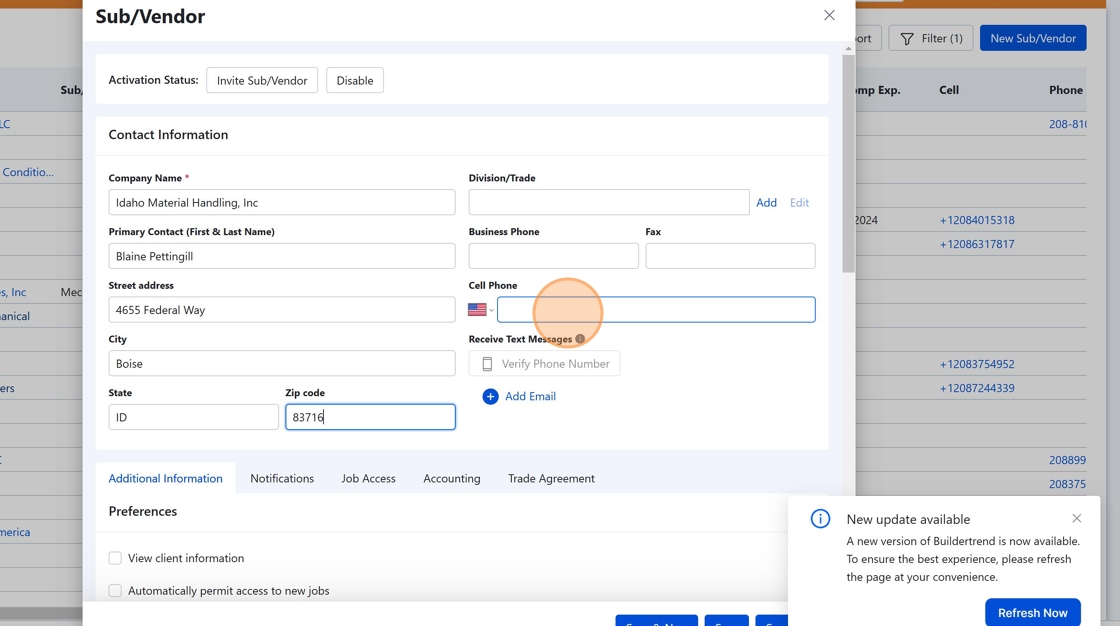
At minimum, you should include the company name, primary contact person, phone number, and email address for effective communication.
-
Add Contact Email
Click "Add Email" to include the subcontractor's email address for digital communications and document sharing.
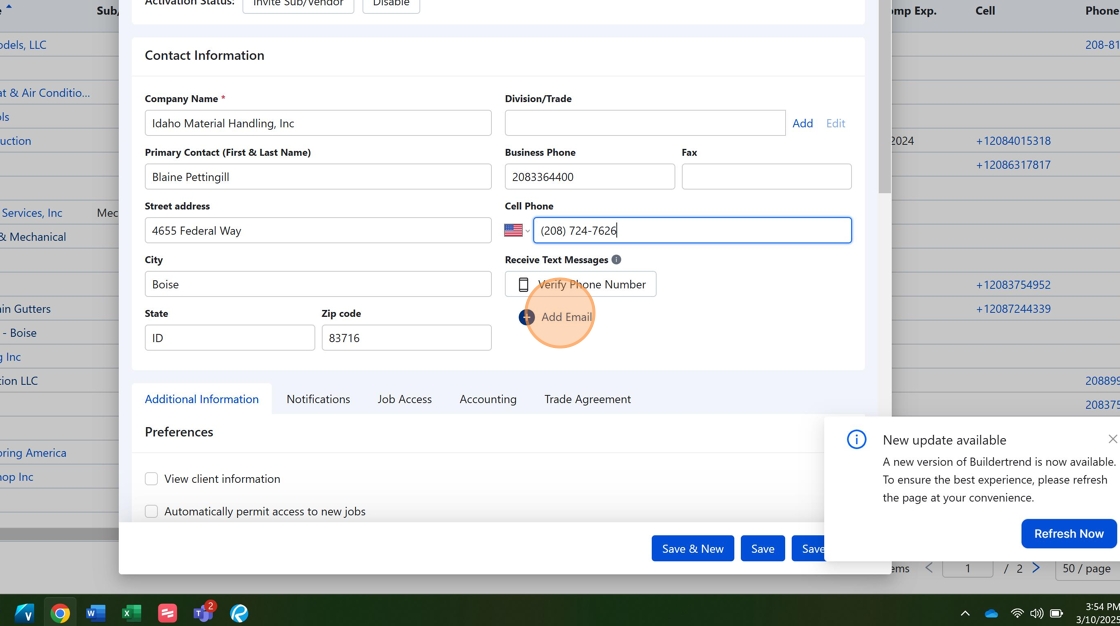
Ensure the email address is correct as it will be used for automated notifications and document sharing.
-
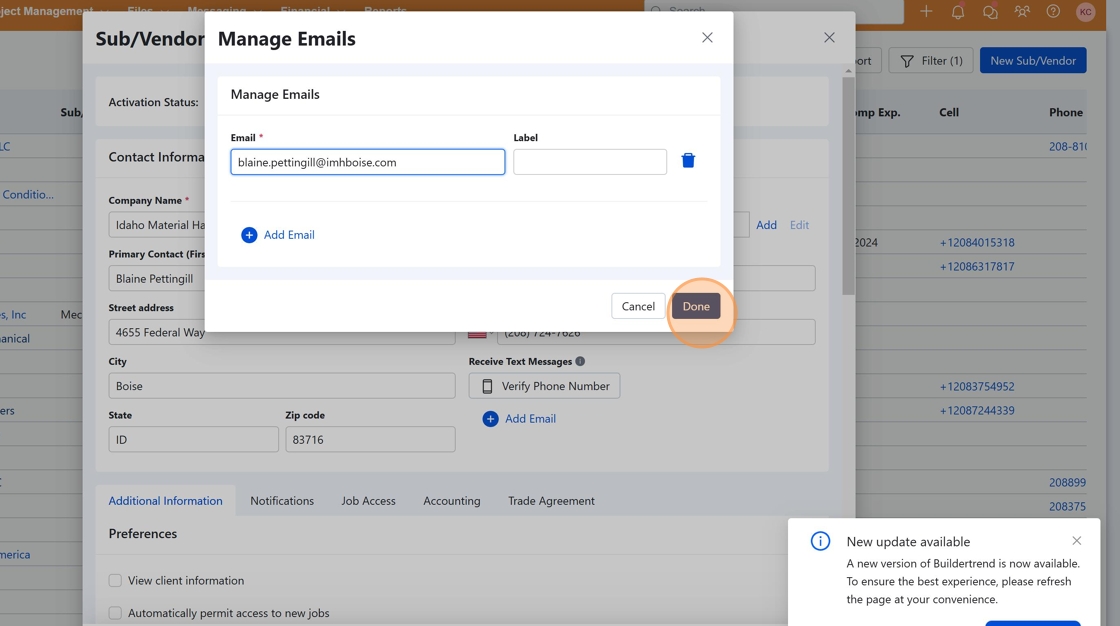
Confirm Email Addition
After entering the email address, click "done" to confirm and add it to the subcontractor's profile.
-
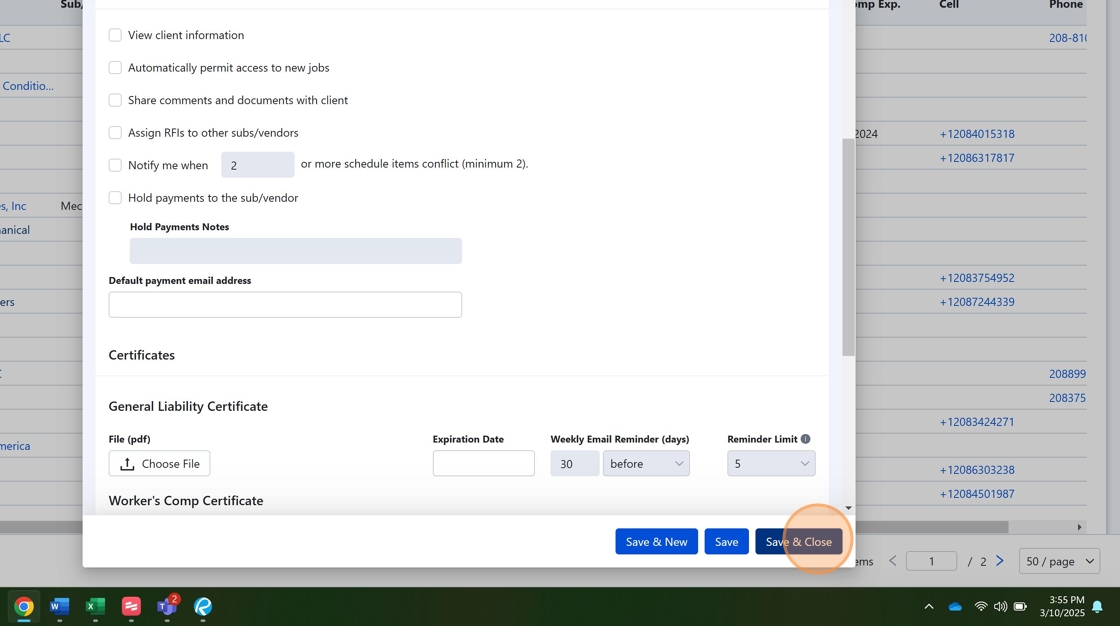
Save and Finalize
Click "save & close" to complete the subcontractor onboarding process and add them to the Buildertrend system.
Post-Onboarding Steps
After successfully adding a new subcontractor to Buildertrend, consider these follow-up actions:
-
Verify Vendor Classification
- Ensure the subcontractor is assigned to the correct service category
- Add any trade-specific classifications for easier filtering
-
Initialize Communication
- Send a welcome email through Buildertrend
- Confirm the subcontractor received their login credentials (if applicable)
-
Document Management
- Upload any relevant contracts or agreements
- Request and store insurance certificates and licensing information
Subcontractor Onboarding Checklist
Use this checklist to ensure all steps are completed during the onboarding process:
- Create subcontractor profile in Buildertrend
- Add complete contact information
- Verify email address functionality
- Associate with relevant projects
- Upload supporting documentation
- Confirm subcontractor can access the platform (if applicable)
When all steps are completed successfully, the subcontractor is ready to be assigned to projects and included in project communications.
This document is controlled and maintained by OVI General Contracting's compliance department.
| Document ID | Document Name | Version | Author | Date Created | Reviewer | Status |
|---|---|---|---|---|---|---|
| Subcontractor Onboarding | 1.0 | Kelsey Cannon | 2025-03-11 | APPROVED |
The current version is as of the date issued above. Any amendments to this policy will be distributed promptly and will supersede any previous versions.