Approving a Time Clock Shift
This procedure guides you through the process of approving employee time clock shifts in BuilderTrend. Following this process ensures accurate time tracking and proper job costing.
Prerequisites
- BuilderTrend account with appropriate permissions
- Time shifts that need approval
Procedure
-
Navigate to Project Management Menu
Click "Project Management Menu" in the main navigation.

-
Access Time Clock
Click "Time Clock" in the dropdown menu. Make sure you are searching in "all open jobs" for a complete view of time entries.

-
Select Time Shift
Find and select the specific time shift you need to approve from the list of available entries.

-
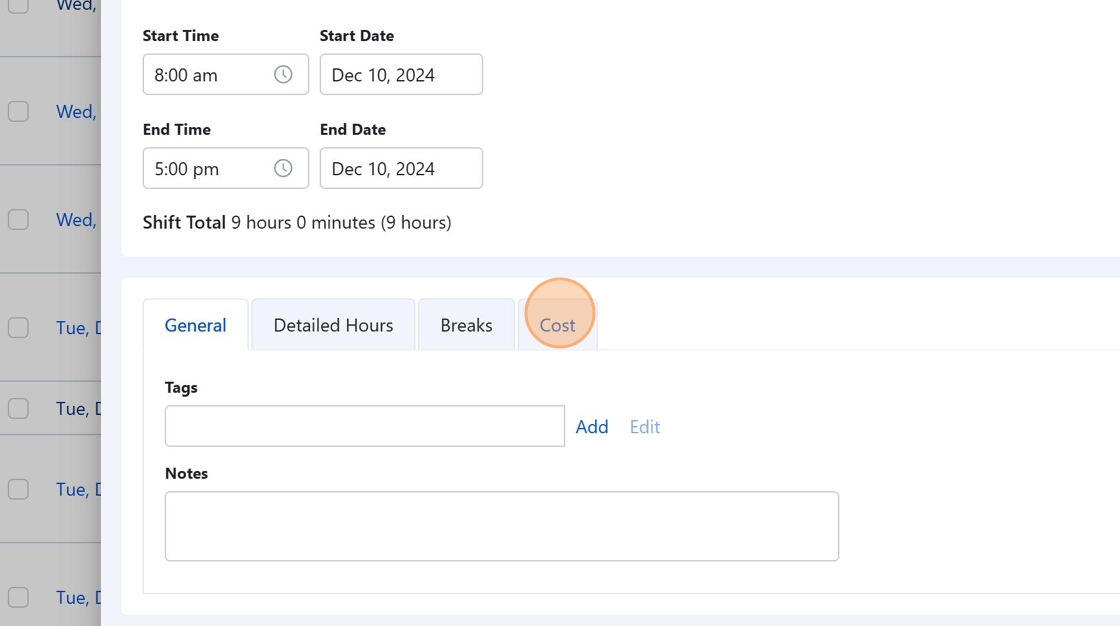
Access Cost Section
Click the "Cost" tab to view and modify cost coding information for the selected time shift.
-
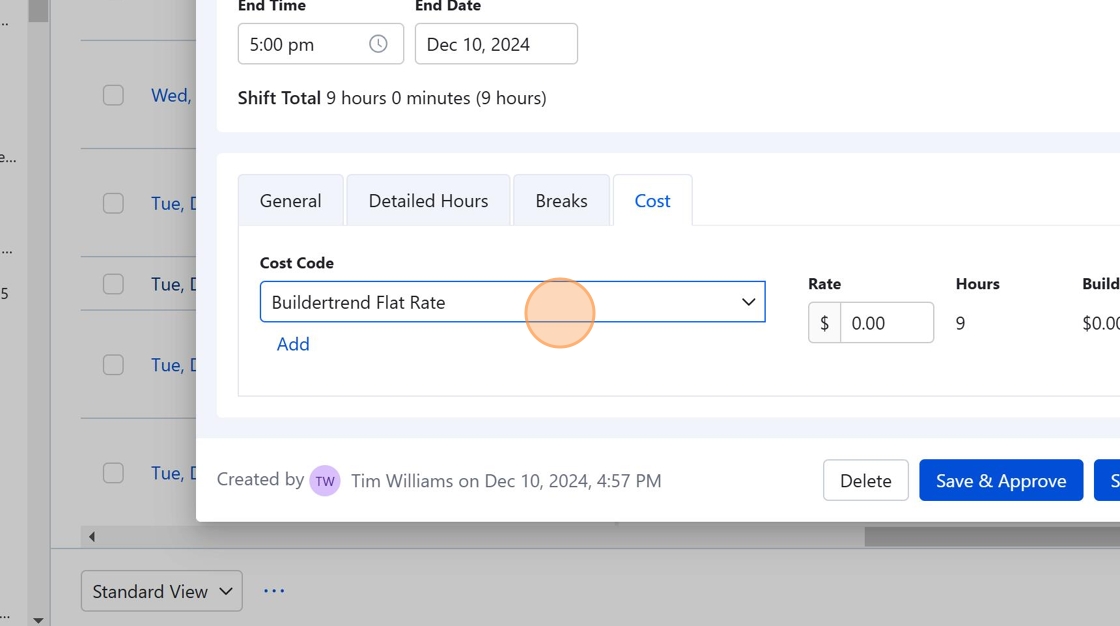
Check and Update Cost Code
Review and, if needed, click the cost code dropdown to recode the shift to the appropriate cost category.
Important for Accurate Job CostingEnsuring the time is coded to the correct cost code is essential for accurate job costing and financial reporting.
-
Select Appropriate Cost Code
Choose the correct cost code from the dropdown list that best represents the work performed during this time shift.

-
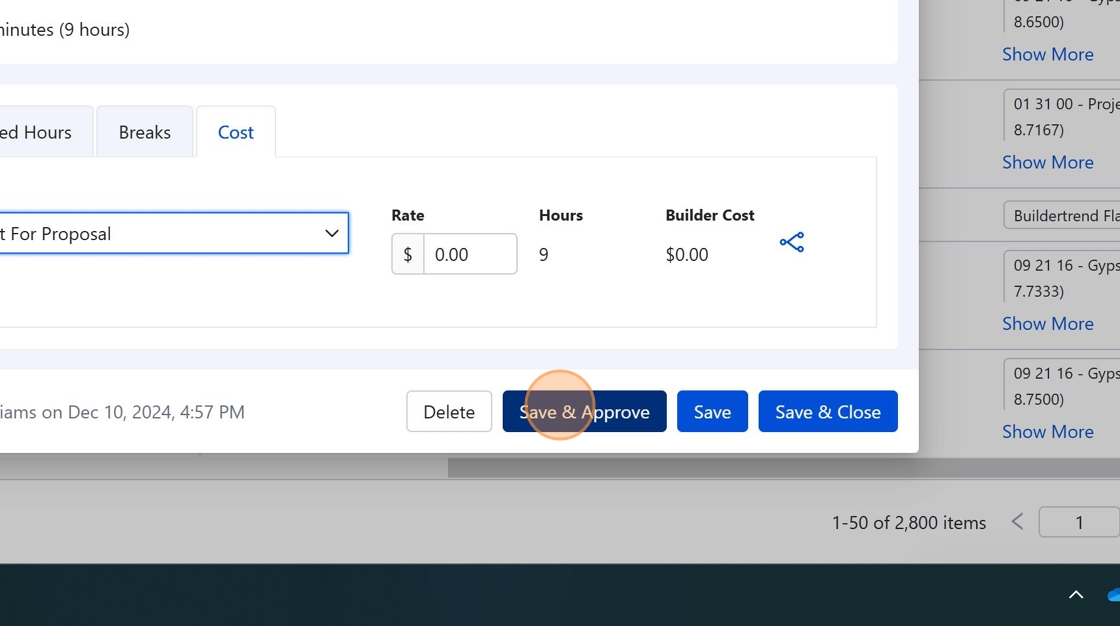
Save and Approve
Click the "Save & Approve" button to apply your changes and move the shift to approved status.
-
Confirm Approval
In the confirmation dialog that appears, click "Approve Shift" to finalize the approval.

-
Complete the Process
Click "Save & Close" to finish the process and return to the time clock view.

Process Summary
This procedure is a critical transformer in the overall time tracking and payroll process. The inputs are unapproved time entries, and the outputs are properly coded, approved time entries that feed into both payroll processing and job costing systems.
Checklist
- Navigate to Project Management Menu
- Access Time Clock
- Select the appropriate time shift
- Review time entry details
- Verify or update the cost code
- Save and approve the shift
- Confirm the approval
- Complete the process
Once all steps are completed, the time shift is approved and properly coded for accurate job costing and payroll processing.